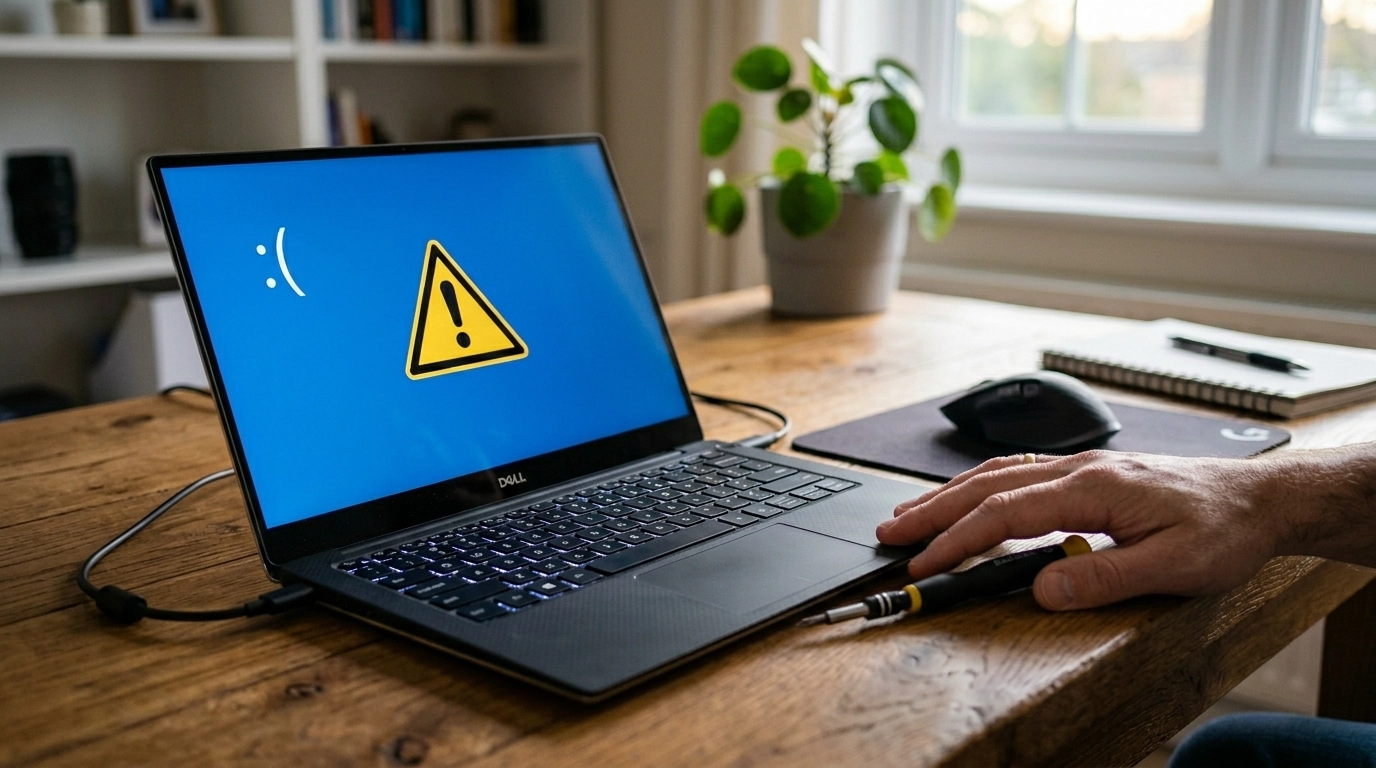

Every computer tells a story long before it fails completely. Small glitches, strange noises, and subtle slowdowns are rarely random. They are signals. At Telespace, we often see devices brought in only after weeks or months of warning signs were overlooked, turning simple fixes into complicated repairs. Recognising those early indicators can protect your data, your productivity, and your budget.
Below are the most common signs that a computer is asking for professional attention rather than another restart or temporary workaround.
When Speed Drops Without Explanation
A computer that once opened programs instantly but now struggles with basic tasks is not simply “getting old.” Sudden or progressive slowness usually points to deeper causes such as failing storage drives, insufficient memory handling, malware activity, or overheating components.
You might notice:
• Programs freezing mid-task • Long startup times • Delays when switching between applications
Many users attempt repeated cleanups or random software installs hoping for improvement. Sometimes the issue sits at system level, where diagnostics matter more than guesswork.
Unexpected Shutdowns or Restarts
If your computer turns off on its own, restarts randomly, or displays error screens, treat it seriously. Hardware protection systems shut devices down when temperatures or electrical behaviour become unsafe.
Common triggers include:
Overheating due to dust buildup
Power supply instability
Failing internal components
Corrupted operating system files
Ignoring shutdown patterns can eventually prevent the system from turning on at all.
Loud Fans and Rising Heat
Computers naturally produce heat, but excessive warmth or constantly loud fans indicate cooling problems. Dust accumulation inside desktops and laptops is one of the most frequent repair issues technicians encounter.
Signs worth noticing:
• The laptop feels hot even during light use • Fans run loudly immediately after startup • Performance drops when the device warms up
Heat shortens component lifespan dramatically. Professional internal cleaning and thermal management can restore stability and prevent permanent damage.
Programs Crashing More Often
Occasional app crashes happen. Frequent crashes across different programs signal system instability.
This may stem from:
Memory faults
Software conflicts
Driver issues
Storage errors
When crashes affect unrelated applications, the problem is rarely the apps themselves. Diagnostic testing helps isolate whether the issue is software-based or hardware-related.
Strange Noises From Inside the Computer
Clicks, grinding sounds, or repeated ticking noises should never be ignored, especially in desktops or older laptops using traditional hard drives.
These sounds often indicate mechanical failure in storage devices. Continuing to use the computer risks permanent data loss.
Immediate action is recommended:
Stop heavy usage. Back up important files if possible. Seek professional assessment quickly.
Data recovery becomes more complex once physical damage progresses.
Internet Problems That Follow the Device
Slow or unstable internet is not always a network issue. If other devices connect normally but one computer struggles, the problem may lie within its internal network adapter, outdated drivers, or hidden software conflicts.
Symptoms include:
• Frequent disconnections • Extremely slow downloads on one device only • Network errors despite strong Wi-Fi signals
A proper diagnostic distinguishes between connectivity problems and system-level faults.
Storage Warnings and Missing Files
Low storage notifications are easy to dismiss, yet they can signal more than a full drive. File corruption, bad sectors, or failing SSDs may cause files to disappear or refuse to open.
Watch for:
Files becoming unreadable
Folders vanishing unexpectedly
Error messages when saving documents
Peripherals Suddenly Stop Working
When keyboards, USB devices, monitors, or accessories stop responding, users often assume the external device is faulty. Sometimes the real issue lies in motherboard connections, drivers, or power delivery systems.
Professional troubleshooting checks:
• Port functionality • Internal connectors • Software communication layers
Replacing accessories without diagnosis can waste both time and money.
Battery Problems and Charging Issues
Laptop batteries degrade naturally, but rapid draining, failure to charge, or sudden percentage drops suggest either battery wear or charging circuit faults.
Warning signs include:
Battery draining within minutes
Laptop only working when plugged in
Charging interruptions with slight cable movement
Timely repair prevents stress on other internal components affected by unstable power flow.
Security Warnings or Suspicious Behaviour
Pop-ups, unknown programs, or browser redirects often indicate malware or unwanted software. Beyond annoyance, these threats compromise personal data and system performance.
Indicators worth attention:
• Antivirus warnings appearing repeatedly • New toolbars or applications you did not install • Fans running heavily during idle periods
Professional cleanup ensures threats are removed completely rather than partially hidden.
Listening Before Failure Happens
Computers rarely fail without warning. They slow down first. They heat up. They behave differently in ways easy to overlook during busy days. Paying attention to those early signals reduces repair costs and protects valuable files.
Professional repair is not always about replacing parts. Often it involves accurate diagnosis, preventative maintenance, internal cleaning, software repair, or performance restoration that extends the life of existing hardware.
At Telespace, we focus on practical solutions that restore reliability rather than unnecessary replacements. When a device begins showing these signs, timely attention keeps small issues from becoming disruptive ones, helping your technology continue supporting work, study, and everyday life without interruption.